

Microsoft 365 (M365) should be one of the simplest tools to deploy in a business… yet many SMEs struggle with failed installations, stuck progress bars, unexplained error codes, or setups that work on one computer but refuse to install on another.
Installation failures usually aren’t random. They happen because of system conflicts, corrupted files, security software, unsupported operating systems, or misconfigured Windows services. The good news? In most cases, the fix is straightforward once you understand what’s causing the problem.
This guide breaks down why M365 setups fail, what to look out for, and how SMEs can reduce risk, plus practical steps your team can take if something does go wrong.
What Is an M365 Setup Failure?

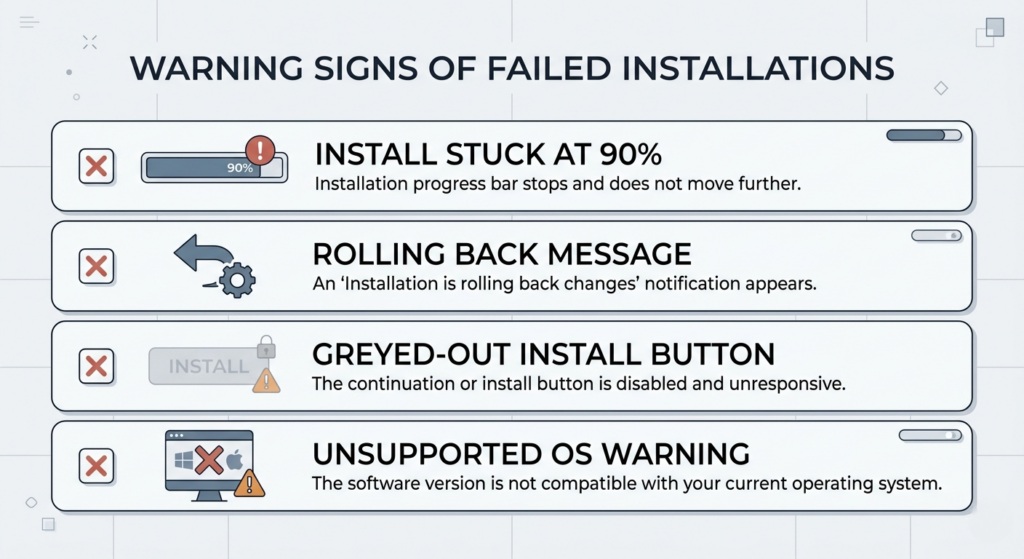
An M365 setup failure occurs when Microsoft 365 cannot install, activate, or complete configuration on a device. This may appear as:
- The installer freezing (often at 50% or 90%)
- Error codes like 1603, 1719, 1935, or 0x80070005
- Setup cancelling or rolling back
- Office apps showing as installed but refusing to open
- “We’re getting things ready” or “Please wait” messages stuck in loops
- “Unsupported operating system” warnings
- “Install button greyed out” in the Microsoft dashboard
These failures affect productivity, licensing, onboarding, and security, especially when SMEs rely heavily on Microsoft 365 for email, Teams, documents, and authentication.
How M365 Setups Work (And Where They Break)
A Microsoft 365 install relies on several moving parts under the hood:
- The installer downloads necessary components
- Windows Installer (MSI) or Click‑to‑Run processes unpack files
- The system checks compatibility, permissions, and services
- Apps are registered, libraries updated, and permissions applied
- Licensing and activation complete the setup
If any one of these steps fails, because a service is stopped, antivirus blocks a file, Windows has corrupted registry entries, or network connection drops, the whole installation may freeze or fail.
Benefits of Understanding Why Setups Fail
Knowing the common causes helps SMEs:
- Reduce downtime
- Speed up onboarding of new staff
- Avoid costly troubleshooting
- Strengthen overall system reliability
- Make better decisions around IT support and policies
Understanding what’s normal vs. what’s a warning sign saves time and frustration.
What’s “Most Recent” in M365 Setup Failures
1) Installer conflicts & system processes blocking setup

Background Windows Installer tasks or older Office remnants can cause installation hangs or error 1603. This is especially common during upgrades or when Office wasn’t cleanly removed.
2) Network instability affecting Click‑to‑Run
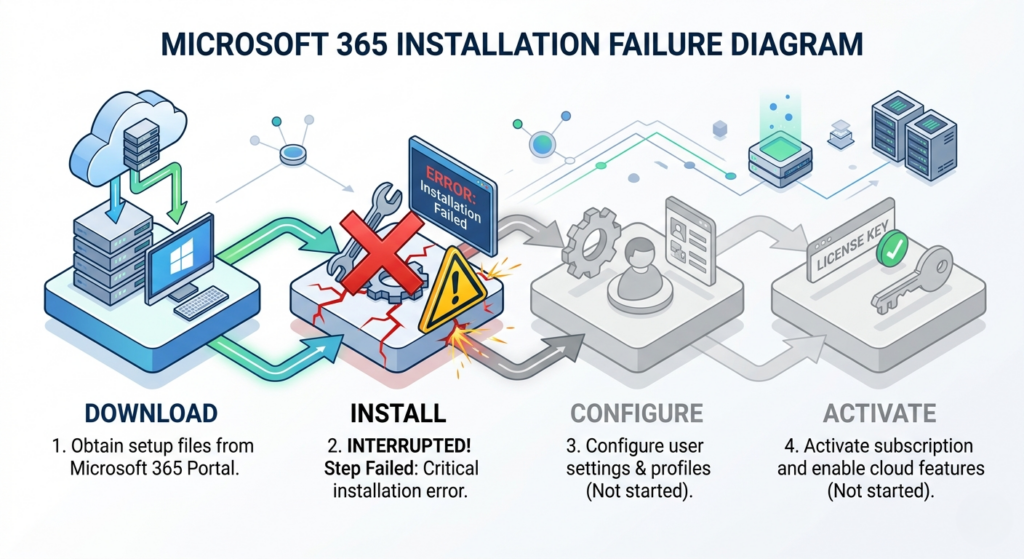
Wi-Fi drops, slow connections, or firewall filtering often freeze installations, usually around 80 to 90%.
3) Security tools interfering
Antivirus and endpoint protection sometimes block:
- Setup.exe
- OfficeStreaming.exe
- Installer temp files
This leads to failure codes like 0x80070005 (access denied).
4) Unsupported OS or outdated Windows builds
Older computers running outdated versions of Windows cannot complete M365 installs.
5) Corrupted Windows services or registry entries

Especially for errors like:
- 1719 – Windows Installer service not accessible
- 1935 – assembly component installation failure
These require deeper system fixes.
What to Look Out For (Without Becoming a Technician)
These are practical warning signs SMEs should watch for:
- Install stuck at 90%: Windows Installer is likely busy or blocked.
- Repeated rollback messages: The system is undoing changes because something failed.
- “Value 3” errors in logs: These indicate critical installation errors.
- “We couldn’t install Office” loops: Probably corrupted registry or leftover files.
- Install button greyed out: License or account mismatch.
- Unsupported operating system message: You’re installing the wrong version (32-bit/64-bit or outdated Windows).
How SMEs Can Reduce Risk
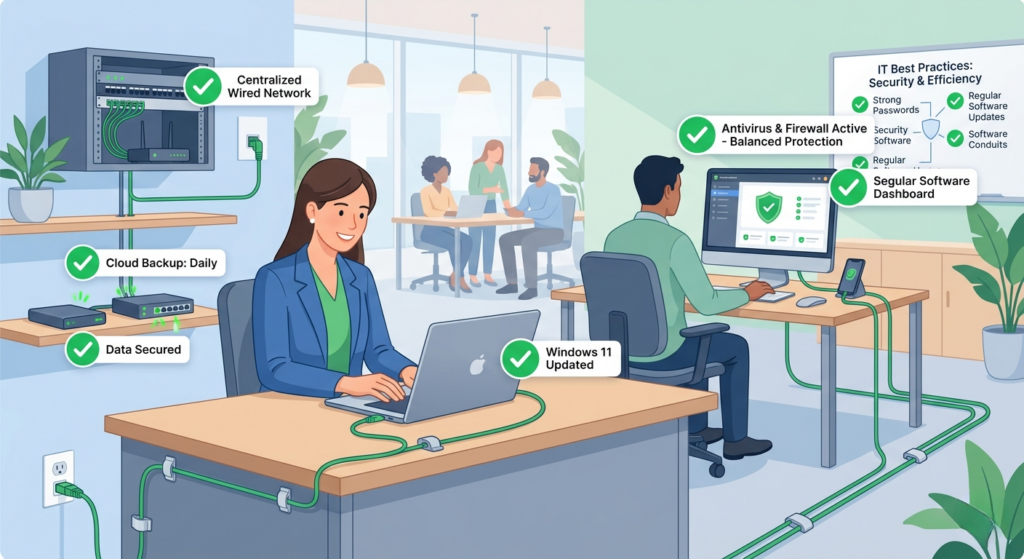
- Use consistent, up-to-date Windows versions: Standardising on Windows 11 reduces compatibility issues.
- Remove old versions of Office before installing: Leftover data is one of the leading causes of failure.
- Avoid installing over Wi-Fi during business hours: Use wired connections or offline installers.
- Keep antivirus from blocking the installer: Temporarily disable or whitelist Office processes.
- Ensure accounts and licensing match: Many install failures come from using the wrong Microsoft account.
Risk and Mitigation (Practical Layers for SMEs)
- Use the Microsoft Office Uninstall Tool: This clears old components, registry issues, and corrupted files.
- Enable verbose logging for deep troubleshooting: This helps identify exactly where the install fails.
- Repair Windows Installer services: Fix error 1719 or corrupted registry entries.
- Rely on the Microsoft 365 Offline Installer: Avoid connection-related failures.
- Repair Office installation (Quick or Online Repair): Fixes corrupted files or partial installs.
- Check and correct system permissions: Some errors stem from AppID, CLSID, or system folder permission issues.
- Ensure Windows Event Log service is running: Necessary for certain Office components.
If Something Happens: What To Do
If an M365 setup fails or stalls:
- Restart the computer & retry the install: Often clears stuck installers.
- End all setup.exe/msiexec processes: Conflicting processes block M365 setup.
- Switch to a wired connection: Eliminates Wi-Fi drops.
- Temporarily disable antivirus: Installers often fail silently due to blocked files.
- Use the Office uninstall tool: Removes corrupted past installations completely.
- Use Online Repair or the Offline Installer: Fixes deeper issues or bypasses internet-based failures.
- Check system requirements: Outdated Windows versions must be updated first.
Frequently Asked Questions
Why does Microsoft 365 get stuck at 90%?
Windows Installer is likely busy or blocked — restart and retry.
Why does the Install button not work?
Your Microsoft 365 subscription is inactive, or you are signed in with the wrong account.
Why do I keep getting error 1603 or 1935?
Usually caused by corrupted system components or registry issues.
Can antivirus block an M365 install?
Yes, this is extremely common.
Is Office easier to install with the offline installer?
Yes. Offline installs eliminate network-based failures.
Do old versions of Office need to be removed first?
Almost always — old files frequently cause new installation errors.
How Seitfin Can Help
Microsoft 365 is powerful, but only when deployed correctly.
Seitfin helps South African SMEs avoid failed setups and downtime by providing:
- M365 installation & configuration
- License management
- Email & Teams setup
- Device preparation and standardisation
- Troubleshooting failed installs
- POPIA-aligned security configuration
- Endpoint security, backups & phishing protection
If your business relies on Microsoft 365, Seitfin ensures it’s set up properly, securely, and without disruption.